How to write a quiz from a chapter or article in Canvas
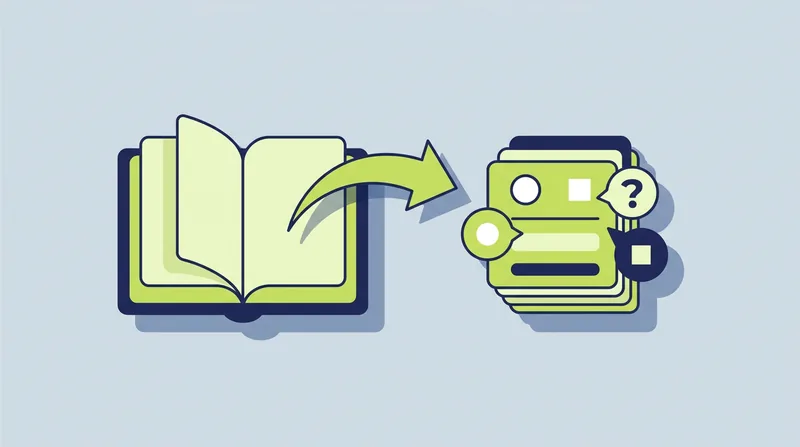
Short answer: Canvas has no way to write questions from a reading, so you read and type each one in Quizzes → Add Quiz → Questions. Or attach the PDF in Course++ and type: “Write a 10-question quiz on the attached chapter.”
The problem
My students have the reading. Now I need the quiz.
You reread the chapter, pick what matters, and type the questions, wrong answers and all. A good wrong answer is the slow part of every multiple-choice question.
reread, then writeevery wrong answer invented
The fix
Hand over the reading. Course++ drafts the quiz.
It reads the chapter, shows you a plan, and builds a classic quiz once you approve. Then you check each question against the reading.
1 PDF attachedanswers marked
Prompts you can copy
Open your Canvas course, open Course++ beside it, and paste one of these. Change the names and numbers to match your course.
Write a 10-question quiz on the attached chapter. Make 8 multiple choice and 2 short answer, and mark the correct answers.
For a chapter or article saved as a PDF.Read the page “Week 3 Reading” in this course and write a 6-question quiz on it. Put the quiz in the Week 3 module.
When the reading is a Canvas page.Write 5 true/false and 5 multiple-choice questions from the attached article, and add feedback that explains each correct answer.
To give students feedback as they go.I attached photos of pages 112 to 115 from our textbook. Write an 8-question multiple-choice quiz on them and put it in the Chapter 4 module.
When the reading is only on paper. Clear, well-lit photos work best.Read the page “Week 3 Reading” and list its five key terms.
A quick check before you build. It only reads; nothing changes.
How to build a quiz from a reading in Canvas by hand
- Reread the chapter or article and note the ideas you want to test.
- In Course Navigation, click Quizzes, then Add Quiz. If Canvas asks for a quiz engine, choose Classic Quizzes and click Submit.
- Type a title on the Details tab.
- Open the Questions tab and click New Question. Choose its type, type the question and answers, and mark the correct one. Click Update Question.
- Repeat for each question, then click Save.
- Click Publish when you are ready.
Good to know
- It reads only what you give it. Attach a PDF, or point it at a page already in your course. Word and PowerPoint files must be saved as PDFs first. Each attachment can be up to 10 MB.
- Check every question against the reading. A draft can lean on a detail you did not stress, or miss a nuance. You are the one who knows what you taught.
- The quiz is a classic quiz, unpublished. Want it ungraded? See practice quizzes. Already have the test as a PDF? See PDF test to quiz.
Questions teachers ask
Can Canvas write quiz questions from a reading?
No. Canvas has no way to read a chapter and draft questions from it. You write the questions yourself, or you ask Course++ to draft them for you to review.
Can Course++ use a page that is already in my course?
Yes. Name the page in your request, and it reads that page and writes the quiz from it.
Can I attach a Word or PowerPoint file?
Not directly. Save it as a PDF first, then attach the PDF. Course++ can read PDFs and images, but not Word or PowerPoint files.
Will the quiz be published automatically?
No. It is created unpublished, so you can read every question first.
250 FREE credits to try it. No credit card.
Canvas steps checked against Instructure’s own Canvas guides in October 2026. Canvas changes its screens from time to time, and schools turn features on and off, so a button may be named a little differently in yours.